Showing posts with label understand photography. Show all posts

Sunday, March 03, 2013

I am not Superwoman!

It turns out that I cannot do everything!  What a revelation! 

Running a photography business and a photography training center is a ridiculous amount of work.  So blogging is only taking place over at www.UnderstandPhotography.com.

Please visit me over there!  We post photography tips and of course, you can see which classes or photography travel trips we are planning!

Here's a photo from our Ladies Photo Retreat to Mt Dora, Florida: 

Thanks for your business!! 
~ Peggy Farren

See you over at www.UnderstandPhotography.com  or visit our Facebook pages:  https://www.facebook.com/UnderstandPhotography
https://www.facebook.com/avantgardeimages?ref=hl

Wednesday, January 11, 2012

Pelican Bay Photography Show and Competition

 Our blog followers all know that we offer photography classes at our studio under the name of "Understand Photography" here in Naples, Florida.   We've had tremendous success with our  photography workshops and now are offering them out in the community.  We have several workshops scheduled at the Pelican Bay Foundation and two workshops at the Naples Art Association this January/February.  Our workshops range from beginner to advanced, portraits to nature to artistic photography.  We now have six regular photography instructors!  

Check out our photography meetup site and join us - it's free to join!  www.meetup.com/understandphotography
Click on CALENDAR to see our selection of workshops. 

The Pelican Bay Foundation kicked off their season with a photography show and competition.  Peggy put together a team of judges with different specialties:
Sara Timmons - Portraits, Landscapes and Travel
Cathy Nocera - Digital Manipulation
Gordon Campbell - Nature and Travel
Erik Keller - Photojournalism and Editorial
and of course
Peggy Farren - Portraiture

The five of us (actually six since Devon the intern tagged along) had a wonderful time perusing all the photographs that the Pelican Bay residents submitted.  There are some incredible photographers in Pelican Bay!  It was tough, tough, tough to make the decisions but we chose winners in each category.  The next night Pelican Bay hosted a Photography Show and Peggy talked about the winning pictures and why they won.  

Pelican Bay Photography Show and Competition


It was a great experience and we are looking forward to spreading the fun of photography throughout the community!  Please think of us if your club would like to put together a fun photography excursion out into the Everglades or on a boat back into the 10,000 islands.  We can come to your country club for basic classes too! 

Saturday, July 09, 2011

Show and Tell - Photoshop Actions and Layers

We host Studio Model Shoots twice a month through Photography Naples. If you have a DSLR - come on down! We will help you with your settings and it's only $19. You will have so much fun!! www.PhotographyNaples.com

We had a fabulous model last time, Jessica Stone, who is a teen singing sensation. Jessica loves to dress up and we love it to! http://jessvocalist.bandvista.com/bio/

In this post, I'm going to explain how I achieved this look. I will assume you have basic Photoshop or Elements knowledge.
Here is the retouched image:
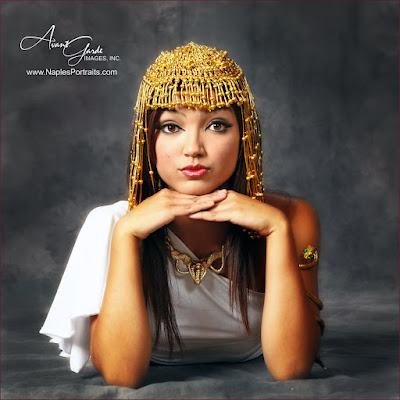
Instructions:
1. Convert the RAW file to JPEG in Adobe Camera Raw.
2. Make a copy of the background layer.
3. Run “Portrait Pop” action. Paint eyes, lips, headress and armband with white brush.
Portrait Pop, Shannon Beauford, 9/28/08 from www.atncentral.com (This may or may not work with Elements - if not, you can skip this step).
4. Reduce top layer to 88% (portrait pop is a little intense).
5. CTL E to merge one layer down.
6. Make a new copy of that layer.
7. Use Quick Selection Tool to choose floor under model.
8. Use burn tool to darken floor.
9. Deselect and burn a bit around top of picture.
10. Make another copy of the layer.
11. Desaturate picture (SHFT – CTL – U).
12. Add a Layer mask to that layer (it's at the bottom of the Layers Palette - Elements didn't come up with this option until Version 9).
13. Paint the model with a black brush to bring the color back.
14. Paint with a white brush to fix any mistakes. I love layer masks because you can easily fix your mistakes!
15. SHFT-CTL-E to flatten layers (or go to Layers - Flatten Image)
16. Add contrast of +18.
17. Crop as a square.

Here is the original picture:
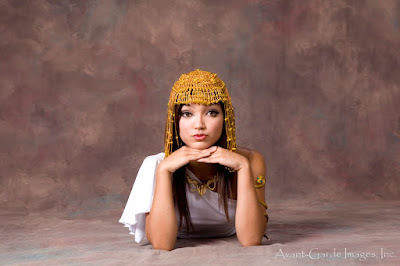
Stay tuned for more photography tips! Better yet, join our Meetup group: www.PhotographyNaples.com.